
Latency (or input lag) is the holy grail of cloud gaming. It is the time that elapses from pressing a button on your controller to seeing the character react on your screen. While a local console operates in single-digit milliseconds, cloud data must travel to a server and back. However, if you know how to tune your setup, you can achieve a response time below 30ms, a threshold where the difference compared to playing on local hardware becomes practically indistinguishable. Much like professionals in Counter-Strike fine-tune every detail of their connection, you can squeeze the absolute maximum out of the cloud.
The Network: Ethernet is King, 5GHz Wi-Fi is a Must
Your internet connection accounts for roughly 70% of total latency. Forget about gigabit download speeds—for the cloud, the key metrics are Ping (response time) and Jitter (ping fluctuation).

- Ethernet (Cable): The most reliable path. It reduces latency by 10–20ms compared to Wi-Fi and eliminates packet loss.
- 5GHz Wi-Fi: If you cannot run a cable, the 5GHz band is the bare minimum. Older 2.4GHz networks are unusable for cloud gaming due to interference and high jitter.
- QoS (Quality of Service): Set your router to prioritize “Gaming” or “Streaming.” This ensures that background updates don’t steal bandwidth from your active game stream.
| Connection Type | Average Latency | Stability | Gaming Suitability |
| Ethernet Cable | 5–15 ms | Perfect | Ideal |
| Wi-Fi 6 (5GHz) | 8–25 ms | Excellent | Very Good |
| 5G Mobile Network | 10–30 ms | Variable | Very Good |
| Wi-Fi (2.4GHz) | 25–60+ ms | Unstable | Unsuitable |
The Controller: Wire Beats Blue(tooth)
Many players forget that the controller connection itself adds precious milliseconds to the chain.
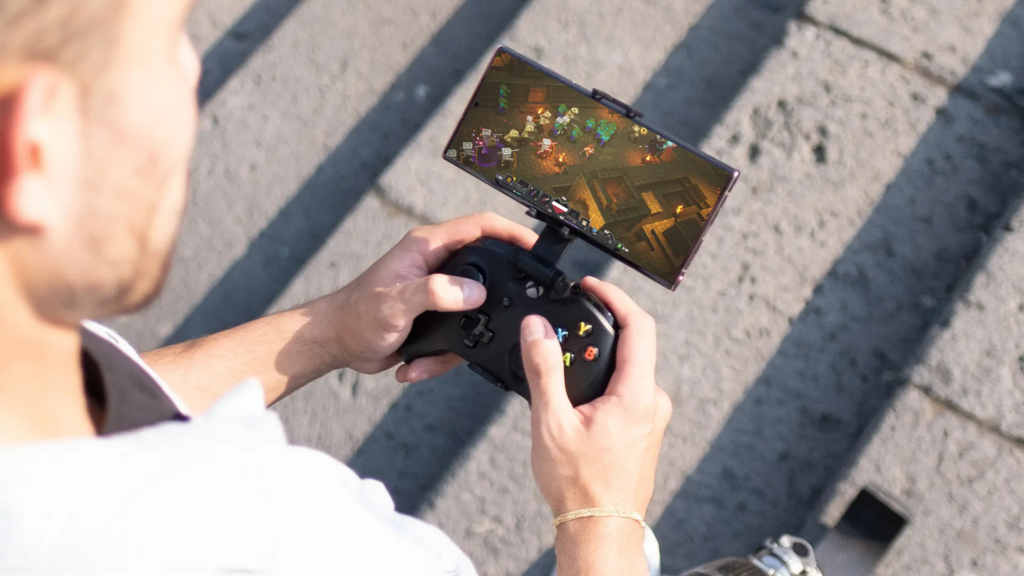
- USB-C Cable: By connecting your controller to your PC or mobile via cable, you save approximately 8–15ms of latency that Bluetooth would otherwise add. Plus, you avoid signal interference.
- Xbox Wireless Adapter: For PC players, this is the best wireless choice. It uses a dedicated frequency outside of Wi-Fi and offers latency comparable to a wired connection.
Device Optimization: Turn Off the Noise
A cloud stream is essentially an interactive video that your processor must decode instantly.
- Game Mode: Always have this enabled on your TV and in Windows 11. It disables image post-processing, which can add up to 50ms of delay.
- Hardware Decoding: Ensure that hardware acceleration is turned on in your browser (Edge/Chrome). Modern chips (Apple A17, Snapdragon 8 Gen 3) have dedicated circuits for these tasks.
- Thermal Management: If your mobile device overheats, it will throttle performance, leading to sudden lag spikes. Remove the case or play in a cooler environment.
Editor’s Take
The hunt for milliseconds might sound like an obsession, but in the cloud, it is the difference between victory and defeat. Our experience is clear: the biggest “leap” occurs when switching from Wi-Fi to cable and from Bluetooth to a USB controller connection. If you are playing an RPG like Starfield, a minor lag is survivable, but in Forza or Halo, every tenth of a second counts. If you have fiber optics to your home, sub-30ms latency is absolutely achievable with our tips.
FAQ
Q: Will a gaming VPN help me reduce latency in the cloud?
A: In most cases, no. A VPN adds another stop on the data’s journey, which usually increases latency. It only helps if your ISP has extremely poor routing to Microsoft’s servers.
Q: What is the ideal latency for competitive gaming?
A: For shooters like Halo or Call of Duty, aim for under 40ms. For racing games, 50–60ms is acceptable. Anything over 100ms significantly degrades the experience.
Q: Why does my screen occasionally “pixelate” even when I don’t have lag?
A: This is caused by network speed fluctuations (Jitter). The server lowers image quality (bitrate) to maintain a smooth stream and prevent the game from freezing entirely.
Q: Does it matter which browser I use for cloud gaming?
A: Yes. Microsoft Edge is the most optimized for Xbox Cloud Gaming because it utilizes the same underlying technologies as the service itself.